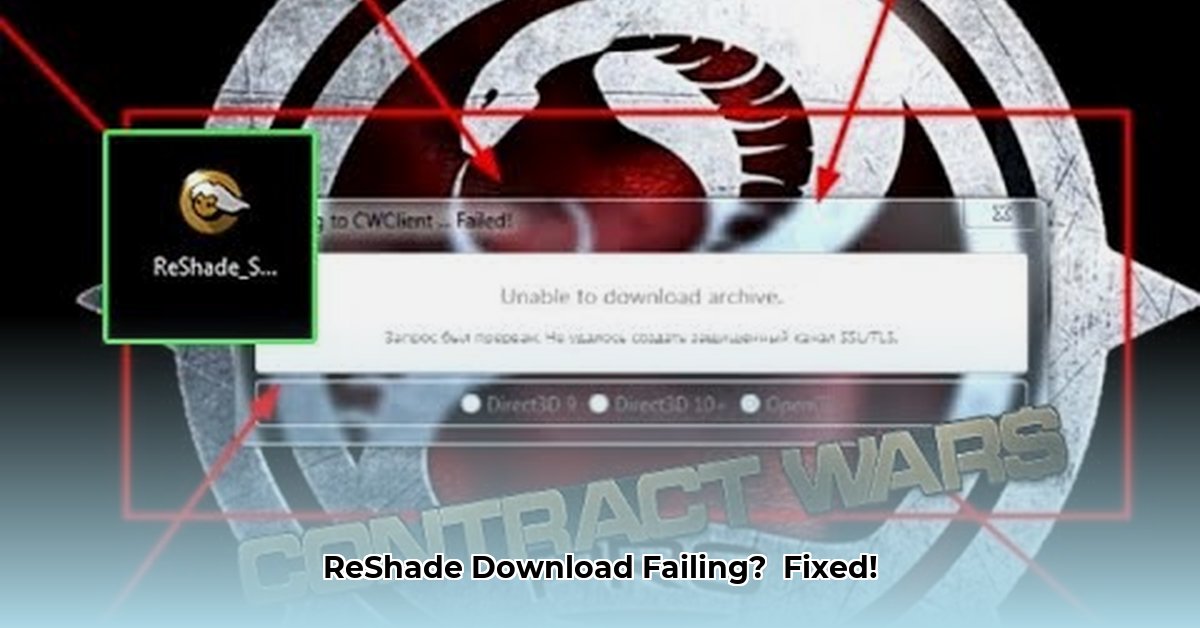
So, you're trying to enhance your gaming experience with ReShade, but the shader download keeps failing? Don't worry, this comprehensive guide provides fast solutions to get those stunning visuals working. We'll cover quick fixes, a manual workaround, and advanced troubleshooting, ensuring you can overcome this common ReShade hurdle.
Understanding ReShade Download Issues
ReShade's inability to download shader archives often stems from several causes: temporary internet connectivity problems, antivirus interference, corrupted downloads, or even a conflict within ReShade itself. This guide will address these issues systematically.
Quick Fixes: Easy Troubleshooting Steps
Before diving into more complex solutions, let's try these simple fixes:
Check Your Internet Connection: Ensure your internet is working correctly. Try accessing another website to verify connectivity. A simple test like this will quickly rule out a network problem as the cause of your issue.
Restart Your Computer: This surprisingly effective step can resolve temporary software glitches interfering with the download process. Give it a try! It might be the simplest solution.
Temporarily Disable Your Antivirus: Your antivirus software might be mistakenly flagging the ReShade download as malicious. Temporarily disable it (remember to re-enable it immediately afterward!), retry the download, and see if this resolves the issue. This is a common cause.
Try a Different Web Browser: Sometimes, a browser's caching or extension conflicts can hinder downloads. Try using a different browser (Chrome, Firefox, Edge) to download the ReShade archive.
The Manual Download and Installation Method
If the quick fixes don't work, let's manually download and install the shaders:
Direct Download from the Source: Visit the official ReShade GitHub page (https://github.com/crosire/reshade) and download the shader package directly. Avoid using ReShade's in-built downloader.
Extract the Archive: Once downloaded, extract the archive's contents to a location you'll easily remember. Note this folder's location; you'll need it later.
Launch ReShade: Open the game where you want to use ReShade and launch the application.
Manually Add Shader Paths: In ReShade's settings, locate the section for "Effect Search Paths" or a similar option. Manually add the paths to the "Shaders" and "Textures" folders you extracted earlier. Incorrect paths are a frequent source of errors.
Reload Effects: Click the "Reload" button in ReShade to apply the newly added shaders. If everything is configured correctly, your shaders should now load.
Advanced Troubleshooting: Persistent Problems
If the manual method fails, consider these advanced troubleshooting steps:
Reinstall ReShade: Completely uninstall the current ReShade installation. Then, download and install the latest version from the official source, following steps 1-5 above. A clean reinstall often resolves underlying conflicts.
Check for Updates: Verify you're using the latest ReShade version. Outdated versions might contain bugs fixed in newer releases. Regularly updating ReShade is strongly advised.
Identify Software Conflicts: Other running programs might interfere with ReShade. Close unnecessary applications before trying the download or installation again.
Seek Community Support: Consult the ReShade community forums (https://reshade.me/forum/) for assistance. Many users encounter similar issues and can offer valuable insights or solutions.
Preventative Measures: Best Practices
To avoid future download issues, follow these best practices:
Stable Internet Connection: Ensure a stable internet connection during download. Avoid downloading while using bandwidth-intensive applications.
Uninterrupted Download: Let the download complete without interruption. Pausing or stopping the download might corrupt the archive.
Regular ReShade Updates: Keep ReShade up-to-date to benefit from bug fixes and performance improvements.
Common Error Messages and Solutions
The following table summarizes common ReShade errors and their solutions:
| Error Message | Possible Cause(s) | Solution |
|---|---|---|
| ReShade unable to download archive | Network issues, antivirus interference, corrupted download | Check internet, temporarily disable antivirus, retry download, verify file integrity |
| Extraction failed | Corrupted download, incorrect archive format | Redownload the archive, use a different extraction tool |
| "Failed!" after "Succeeded!" | Incorrect file paths, permission issues | Manually verify shader and texture paths in ReShade settings |
| "Shader not found" | Incorrect or incomplete installation; missing files | Verify installation, re-download necessary files, double-check file paths |
| ReShade crashes during installation | Conflicting software, insufficient permissions | Close unnecessary programs, run installer as administrator |
Remember, patience is key. If you're facing persistent problems, don't hesitate to seek support from the ReShade community. Their collective experience can prove invaluable in resolving even the most stubborn issues.
⭐⭐⭐⭐☆ (4.8)
Download via Link 1
Download via Link 2
Last updated: Tuesday, April 29, 2025